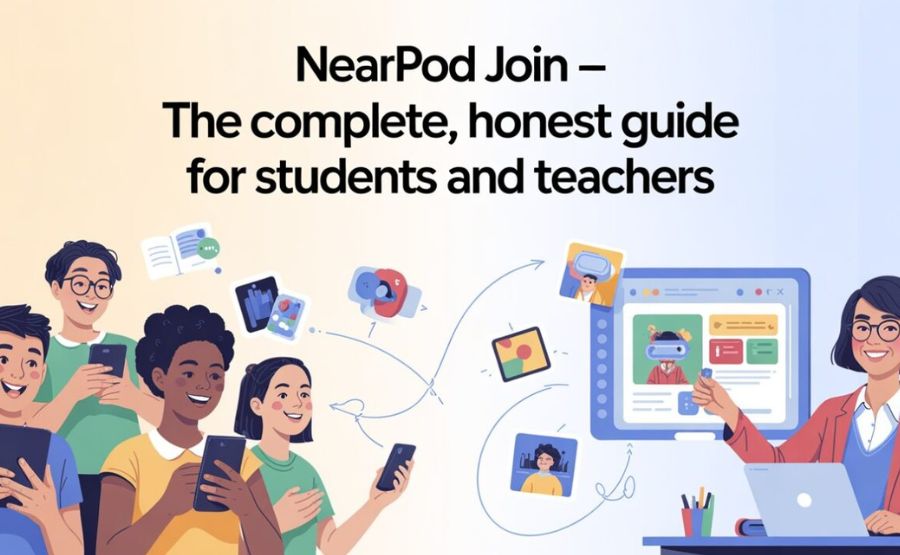
Imagine a teacher writing five letters and numbers on the whiteboard. Thirty phones light up at once. Every kid taps in, types their name, and suddenly they’re all standing inside the same lesson together.
That small moment is Nearpod Join doing its job.
This guide walks through everything about it, start to finish. We’ll cover what it is, how it works, why it sometimes breaks, and how both students and teachers get the most out of it. No tech jargon. Just plain talk, like a friend explaining it over coffee.
Quick Facts
| Fact | Detail |
| Company name | Nearpod |
| Founded | 2012 |
| Founders | Felipe Sommer, Emiliano Abramzon, Guido Kovalskys |
| Headquarters | Florida, USA |
| Current owner | Renaissance Learning (bought it in 2021) |
| Join website | join.nearpod.com |
| Code length | 5 characters |
| Account needed to join as a student? | No |
| Works on | Phone, tablet, laptop, desktop |
| Mobile apps | iOS and Android |
| Used in roughly | 150 countries |
| Pricing | Free plan, plus paid Gold and Platinum plans |
So What Is Nearpod Join, Really?
Nearpod itself is a teaching tool. Teachers build lessons inside it full of slides, videos, quizzes, and little games.
Nearpod Join is just the front door to all of that. It’s the small website, or the little box inside the app, where a student types a code and walks straight into the lesson the teacher built.
Think of the teacher’s lesson like a locked room. The five-character code is the key. Type it in, and the door swings open, putting you right next to your classmates, even if you’re across the room or across the world.
See also “Propane Weight Per Gallon: Everything You’ve Ever Wanted to Know“
Where This Whole Thing Came From
Three friends started this company back in 2012. Their names were Felipe Sommer, Emiliano Abramzon, and Guido Kovalskys.
They were betting on something simple. Phones and tablets were showing up in classrooms everywhere, so why not build something that turns a boring slide deck into something kids actually want to look at?
The bet paid off in a big way. Years later, in 2021, a much larger education company called Renaissance Learning bought Nearpod for roughly six hundred fifty million dollars. That’s a massive number for a company that started with three guys and an idea.
Today Nearpod lives inside roughly three out of every four school districts in the United States. It also shows up in classrooms spread across about a hundred and fifty countries. That little join code travels a long way.
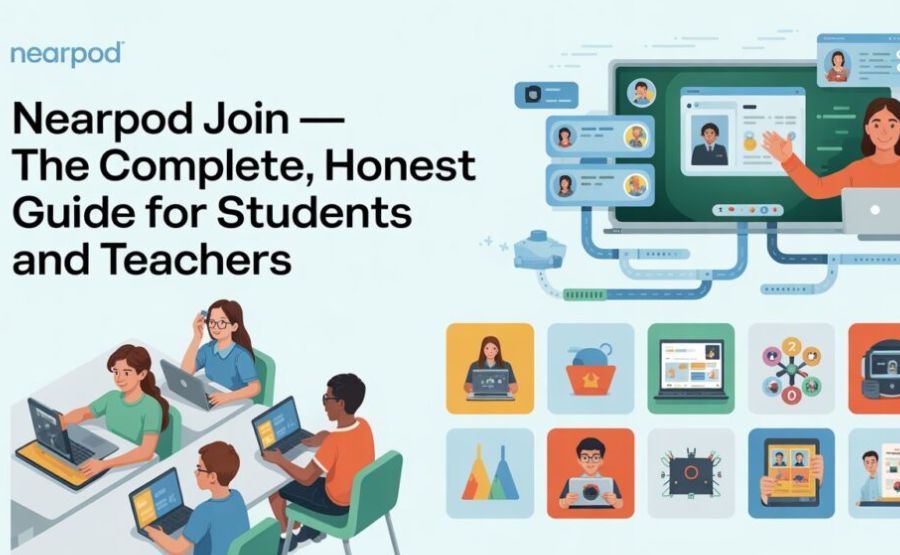
How a Student Actually Joins, Step by Step
Here’s exactly what happens on a normal day.
First, open a browser or the app and head to join.nearpod.com. You could also just open the Nearpod app on your phone if your school has it installed.
Next, you’ll see an empty box waiting for a code. Your teacher already wrote it on the board, said it out loud, or dropped it in a chat.
Type the five characters exactly as shown. Letters and numbers both count, and mixing up similar-looking characters is the most common slip-up.
After that, a small screen pops up asking for your name. Some teachers turn on a setting that fills your name in for you automatically, and some let you tap “Join as Guest” instead.
Hit enter, and that’s it. You’re standing inside the lesson, looking at exactly what your teacher wants you to see.
The whole thing, when nothing goes wrong, takes less time than tying your shoes.
The Different Ways a Teacher Can Hand Out a Lesson
Not every Nearpod session feels the same, because teachers can pick from a few different delivery styles.
Live Participation is the classic mode. The teacher controls every slide, and everyone in the room moves together, like a school bus where nobody gets off until the driver says so.
Live Participation plus Zoom works the same way but adds a video call layer for remote students. This one only shows up on the browser version, not on the phone apps.
Student-Paced flips the control over to the kids. Once a teacher hands out this kind of code, students move through the lesson on their own clock. Teachers usually set a deadline, and that window can stretch anywhere from a single day up to a full year, depending on what the teacher picks.
Front of Class feels more like a regular projector setup, with the teacher driving from one shared screen while students follow along without their own device.
A teacher can also flip on a setting called “Require student submissions.” When that’s turned on, a kid can’t skip past a slide without actually answering whatever question sits on it. No shortcuts, no skipping ahead.
What You Can Actually Do Once You’re Inside
This is where Nearpod earns its reputation. A lesson here isn’t just slides to stare at quietly. It’s full of small interactive moments dropped right between the content.
A quiz might pop up after a video to check if you were paying attention. A poll asks for a quick opinion, and the results show up on everyone’s screen within seconds.
Draw It hands you a digital pen so you can sketch, label a diagram, or highlight something right on top of an image the teacher uploaded.
Collaborate Board works like a shared bulletin board. Everyone posts their thoughts, and classmates can read and react to each other’s ideas in real time, almost like a classroom social feed.
Time to Climb turns review into a race. It’s a multiple-choice game with a leaderboard, so kids end up actually wanting to answer one more question.
There’s more too, like Matching Pairs, Fill in the Blanks, Drag and Drop, and even short virtual reality field trips that let a kid look around ancient ruins or the surface of Mars without ever leaving their desk.
While all this is happening, the teacher watches a dashboard on their own screen. They can see who answered what, who’s stuck, and who finished early, all without walking up and down the rows.
How It’s Different From a Regular Slideshow
A normal slideshow only moves one direction. The teacher talks, the slides change, and the students just watch.
Nearpod flips that around. Every few slides, a student has to actually do something, whether that’s clicking, typing, drawing, or voting.
That single difference is the whole reason teachers reach for it instead of a plain PowerPoint or Google Slides deck. A silent room turns into a room full of moving hands.
When the Code Just Won’t Work
Sometimes that little box on join.nearpod.com spits back an error. It happens, and it’s almost never random.
The most common reason is timing. A join code only stays alive while the teacher’s session is actually running. Yesterday’s code is dead the second a new class starts, so the easiest fix is simply asking for a fresh one.
A close second is a plain typo. Five characters sounds easy, but a capital “O” looks just like a zero, a capital “I” looks just like a one, and an “S” can get mixed up with a “5.” Slow down, look twice, or ask for a clickable link instead of typing anything at all.
Network trouble is another sneaky cause. Some school Wi-Fi networks quietly block the traffic Nearpod needs. A clever way to test this is switching your phone to cellular data for a minute. If Nearpod suddenly works fine, the school network was the real problem all along.
A few schools also lock down which apps are allowed to run on school tablets. If the app refuses to load but the website works fine in a browser, that’s usually the school’s own device restrictions getting in the way, not Nearpod itself.
You Don’t Always Need a Code at All
A code isn’t the only way in. Plenty of teachers skip it entirely and just drop a clickable link instead.
Click that link, and you land straight inside the lesson with no typing required. That’s especially handy for younger kids who might fumble five characters under time pressure.
Nearpod also plugs directly into popular classroom systems like Google Classroom, Canvas, Clever, and Microsoft Teams. When a teacher assigns a lesson through one of those, a student just opens the assignment and the lesson loads on its own. No code, no link, no fuss at all.
A Quick Note for Teachers Running the Show
Starting a session is just as easy from the teacher’s side. Log into nearpod.com, open “My Library,” and hover over whichever lesson you want to launch.
Pick a teaching mode, and a fresh code appears instantly. That code can be shared publicly with a whole grade level, or kept private for just one small group.
Running two classes back to back with the same lesson? No problem. Click “Launch New” and a brand new code appears for the next group, while the old code from the earlier period quietly stops working on its own.
Free Plan or Paid Plan?
Nobody has to pay just to try this out. A free plan exists, and it covers the basics most teachers need on a normal day.
Once a teacher wants extra features, like deeper reports or a bigger activity library, individual paid tiers called Gold and Platinum kick in, usually landing somewhere between roughly one hundred fifty and four hundred dollars a year depending on the tier chosen. Whole schools and districts often buy one site license instead, covering every teacher under a single price.
Either way, the join experience for students stays exactly the same. A kid typing a code into join.nearpod.com has no idea, and honestly no reason to care, whether their teacher is on the free plan or a paid one.
How It Stacks Up Against Other Classroom Tools
Teachers often weigh Nearpod against other names floating around the same space, like Pear Deck or Kahoot.
Pear Deck leans heavily on Google Slides and feels lighter overall. Kahoot leans hard into game-show energy, built mostly around quick quizzes.
Nearpod sits somewhere in the middle, mixing full lesson-building, formative assessment, and that VR layer most of its rivals simply don’t offer. It’s a reason many schools end up picking it as their main platform rather than a side tool.
Why People Keep Coming Back to It
Ask a teacher why they like Nearpod, and the answer usually circles back to the same thing: it turns a quiet room into a room full of hands moving.
Kids stop just watching and start doing. They answer, draw, vote, and discuss, instead of staring blankly at a screen someone else is controlling.
For a substitute teacher walking into an unfamiliar classroom, a prebuilt Nearpod lesson is a small lifesaver. The lesson practically teaches itself while the sub just watches the dashboard and keeps the room calm.
For students learning from home, it closes a gap that plain video calls can’t fix. A kid stuck behind a screen still gets to draw, click, and respond, instead of just sitting and listening.
A Few Small Habits That Make Joining Painless
A handful of tiny habits save a lot of headaches over a school year.
Bookmark join.nearpod.com on your phone so you’re never hunting for the right address during a rushed morning.
Use the exact same name every single time you join. Teachers tracking attendance or grading work appreciate the consistency, and it keeps you from accidentally showing up twice.
If it’s a live session, try to join right when class starts. Showing up late to a live lesson usually means catching up to a slide everyone else already moved past.
Final Words
Nearpod Join looks tiny on the surface. It’s really just a box and five characters.
But that little box quietly connects millions of students to lessons that actually ask something of them, instead of just talking to them. A teacher anywhere in the world can fill a room with quizzes, polls, and drawings in under a minute flat.
Whether you’re a student trying to get into class on time, or a teacher figuring out how to launch your second-period code, the steps stay simple. Type the code, type your name, and you’re in.
That’s really the whole story behind one of the more useful little corners of the classroom internet.
FAQs
1. Do I need a Nearpod account to join a lesson as a student?
No. Students can type a code or click a link and join without ever creating an account.
2. Where exactly do I go to enter a Nearpod code?
Go to join.nearpod.com on a browser, or open the Nearpod app and look for the join box.
3. How long is a Nearpod join code?
It’s five characters long, and it can include both letters and numbers.
4. Is the Nearpod code case-sensitive?
Yes, so type it exactly the way your teacher wrote it, capital letters included.
5. Why does my code say it’s invalid?
The teacher’s session probably ended, or you’re using an old code from an earlier class. Ask for a fresh one.
6. Can two different classes use the same Nearpod lesson at the same time?
Yes. A teacher can launch a brand new code for each class period, even while using the exact same lesson content.
7. What happens if I mistype the code?
Nothing loads, and you’ll just see an error. Slow down and recheck for similar-looking characters like O and 0.
8. Can I join Nearpod from my phone?
Yes, it works on phones, tablets, laptops, and desktops, through either a browser or the official app.
9. Is there a Nearpod app for phones?
Yes, there are official apps for both iOS and Android devices.
10. What’s the difference between Live Participation and Student-Paced mode?
In Live Participation, the teacher controls the pace for everyone. In Student-Paced, each student moves through the lesson on their own schedule.
11. Can a teacher stop me from skipping a question?
Yes, if the teacher turns on “Require student submissions,” skipping past a question becomes impossible.
12. Why won’t Nearpod load on my school’s Wi-Fi?
Some school networks block the traffic Nearpod needs. Try switching to cellular data to see if that’s the cause.
13. Do I have to type a code, or can I just click a link?
Either works. Many teachers skip the code entirely and just share a direct link instead.
14. Is Nearpod free to use?
Yes, there’s a free plan, alongside paid individual and school-wide plans for extra features.
15. Who owns Nearpod now?
Renaissance Learning bought Nearpod in 2021, and it still runs under its original name and brand.
Explore more, learn more, and think deeper with Theory Magazine.