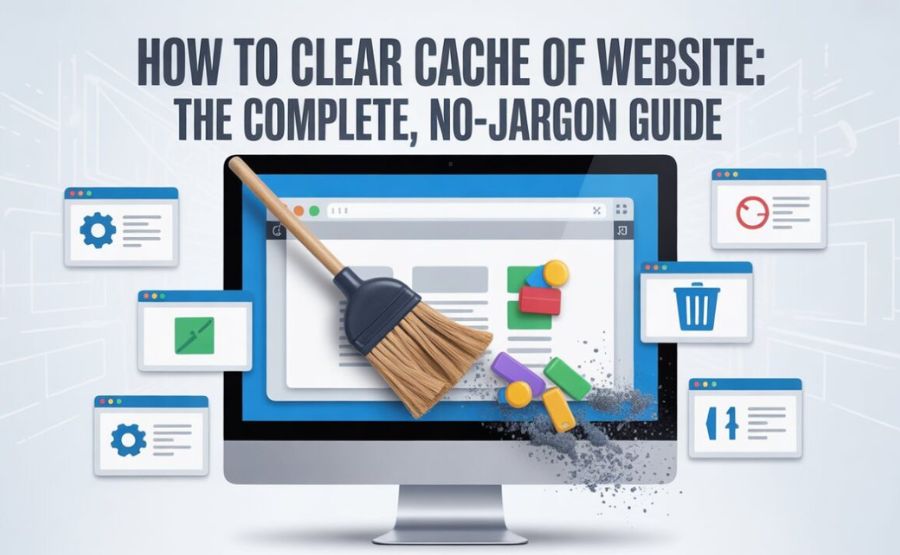
Your favourite website looks broken, and you’re pretty sure it’s not your internet connection. Before you call your phone company or panic-restart your laptop, there’s one quick thing to try — and it takes about 30 seconds.
Clear your cache. That’s it. That’s the fix most of the time.
But I know what you’re thinking. “What even IS a cache? Am I deleting something important? Will I lose my passwords?” Let me walk you through all of it, step by step, like a friend who’s been doing this stuff for years.
Quick Reference
| Topic | Key Info |
| What cache does | Saves website files locally so pages load faster |
| Common sign you need to clear it | Website looks outdated, broken, or slow |
| Will you lose passwords? | Possibly — save them first just in case |
| How often to clear | Every 1–2 months, or when something seems off |
| Chrome shortcut (Windows) | Ctrl + Shift + Delete |
| Chrome shortcut (Mac) | Command + Shift + Delete |
| Time to clear just one site’s cache | Under a minute |
| Does it delete personal files or photos? | No — only temporary browser data |
| Works on mobile too? | Yes — steps below for iPhone and Android |
First Things First — What Is Cache, Actually?
Let me explain this with something you already understand.
Imagine you love a particular pizza shop. Every time you visit, they make the pizza fresh from scratch. That takes 20 minutes.
Now imagine if the pizza shop noticed you always order the same thing. So they started keeping a ready-made version of YOUR pizza warm, just in case. Next time you walk in, your food arrives in 2 minutes instead of 20.
That’s exactly what a cache does for websites.
When you visit a website, your browser saves little copies of things — images, logos, buttons, fonts, background colours. The next time you visit that same site, your browser doesn’t need to download everything again. It just grabs those saved copies from your computer’s storage. The page loads faster.
Sounds perfect, right?
See also “What Is the Best Free AI Image Generator? Here’s the Honest Truth“
So Why Does Cache Cause Problems?
Here’s the twist in the pizza story.
What if the shop changed their recipe? New sauce, new toppings, completely different pizza. But they’re still handing you the OLD one they kept warm.
You’d be confused. You’d think the place hadn’t updated anything, even though it had.
That’s exactly what happens when a website updates but your browser keeps showing the old saved version. The site might have fixed a bug. They might have added a new section. They might have completely redesigned the page. But YOU still see the old, broken, or outdated version — because your cache is holding onto it.
That’s when clearing cache becomes your best friend.
Signs That Clearing Cache Will Fix Your Problem
You don’t need to clear the cache every day. But these are the moments when it’s almost certainly the answer:
- A website looks completely different on your friend’s phone but weird and old on yours
- You updated your own website but visitors keep seeing the old version
- Buttons aren’t clicking, images aren’t loading, or the page layout looks broken
- You log into a site and keep getting sent back to the login page
- A site that used to work fine suddenly won’t load properly
- Your browser feels sluggish even on fast internet
One Important Thing Before You Start
Save your passwords somewhere safe before clearing your cache.
Some people keep passwords stored in their browser. When you clear cookies and site data — which often gets cleared along with cache — you might get logged out of some websites.
You won’t lose your bookmarks. You won’t lose your downloaded files. Your photos and documents are completely safe. The only thing clearing cache can affect is your login sessions on websites.
Think of it like emptying a small junk drawer. The important stuff stays. Only the temporary bits disappear.
How to Clear Cache in Google Chrome (Desktop)
Chrome is the most used browser in the world, so let’s start here.
There are two ways to do this. The quick keyboard way and the menu way.
The fast keyboard shortcut:
Press Ctrl + Shift + Delete on Windows. Press Command + Shift + Delete on a Mac. A window pops up immediately.
The menu way:
Click the three small dots in the top right corner of Chrome. Choose “Settings.” Then click “Privacy and Security” in the left sidebar. Then click “Delete browsing data.”
Either way gets you to the same place. A small window appears asking what you want to delete.
Here’s what to check:
- Cached images and files — definitely check this one
- Cookies and other site data — optional, but good to include
For the time range, pick “All time” if things have been acting weird for a while. Pick “Last 7 days” if the problem is more recent.
Hit “Delete data.” Done.
Close Chrome and reopen it. Visit the website again. Nine times out of ten, the problem is fixed.
How to Clear Cache for Just ONE Website in Chrome
Sometimes you don’t want to clear everything. Maybe you just want to fix one specific website without touching anything else.
Chrome lets you do this cleanly.
Type the website’s address into the address bar. Before hitting enter, look for the small icon just to the left of the web address — it might look like a padlock, a dot, or a small warning symbol. Click it.
A small menu pops up. Look for something that says “Cookies and site data” or “Site settings.” Click that. Then look for a button that says “Clear data” or “Delete.”
This wipes the saved data for ONLY that one website. Everything else in your browser stays exactly the same.
You can also try this shortcut: type chrome://settings/content/all directly into your Chrome address bar and press enter. You’ll see a list of every website your browser has saved data for. Find the site giving you trouble and click the bin/trash icon next to it.
How to Clear Cache in Mozilla Firefox
Firefox works a little differently but is just as easy.
Click the three horizontal lines in the top right corner. Choose “Settings.” Click “Privacy & Security” in the left-hand menu. Scroll down until you see “Cookies and Site Data.” Click “Clear Data.”
A box pops up. Make sure “Cached Web Content” is ticked. Click “Clear.”
There’s also a keyboard shortcut that works the same as Chrome: Ctrl + Shift + Delete on Windows or Command + Shift + Delete on Mac.
After clearing, close Firefox completely. Reopen it. The website should now load fresh from the internet rather than from your old saved copy.
How to Clear Cache in Microsoft Edge
Edge is built on the same foundation as Chrome, so the steps feel very familiar.
Click the three dots in the top right corner. Go to “Settings.” On the left side, click “Privacy, search, and services.”
Scroll down until you see “Clear browsing data.” Click “Choose what to clear.”
Pick your time range. Check “Cached images and files.” Hit “Clear now.”
The keyboard shortcut works here too — Ctrl + Shift + Delete on Windows.
How to Clear Cache in Safari (Mac)
Safari is a little different because you need to turn on a hidden feature first.
Open Safari. Click “Safari” in the menu bar at the very top of your screen. Choose “Settings” — or “Preferences” on older Macs. Go to the “Advanced” tab. Tick the box that says “Show features for web developers.”
Now close that window. Look at the menu bar at the top again. You’ll see a new option called “Develop” has appeared. Click it. Choose “Empty Caches.”
Quick keyboard shortcut for next time: Command + Option + E while Safari is open.
If you want to clear cookies too, go back to Safari > Settings > Privacy > “Manage Website Data” and click “Remove All.”
How to Clear Cache on iPhone (Safari)
iPhones handle this a little differently. There’s no single “clear all app caches” button, which can feel annoying.
For Safari — the default iPhone browser — here’s the fastest way:
Open your iPhone’s main Settings app (not Safari itself, but the actual Settings app with the grey gear icon). Scroll down and tap “Safari.” Tap “Clear History and Website Data.” Tap the red confirmation button.
That wipes Safari’s cache, history, and cookies in one go. All open Safari tabs will close after this, so just be aware.
One heads-up: if you clear Safari cache on iPhone, you’ll be logged out of websites on that browser. Have your passwords ready.
How to Clear Cache on Android (Chrome)
On Android, open the Chrome app. Tap the three dots in the top right corner. Tap “History.” Tap “Delete browsing data.”
Choose your time range. Check “Cached images and files.” Tap “Delete data.”
That’s it. Close the app, reopen it, and your problem site should load fresh now.
For Firefox on Android, tap the three dots (or three lines depending on your version). Go to “Settings.” Tap “Delete browsing data.” Select “Cache” and tap “Delete browsing data.”
The “Hard Refresh” Trick — When You Don’t Want to Clear Everything
Sometimes you just need to force ONE page to reload fresh, without clearing your entire cache.
This is called a hard refresh, and it’s incredibly handy.
On Windows (Chrome, Edge, Firefox): Hold Ctrl and press F5 at the same time. Or hold Ctrl and click the reload button next to the address bar.
On Mac (Chrome, Safari, Firefox): Hold Command + Shift and press R.
This tells your browser: “Ignore anything you’ve saved for THIS page. Go download it fresh right now.” The rest of your cache stays untouched.
If you just updated your own website and want to see the new version, a hard refresh is usually enough.
For Website Owners — Clearing Server-Side Cache
If you own a website and your visitors keep seeing the old version even after THEY clear their cache, the problem might not be on their end. It might be on yours.
Many websites use something called server-side caching. This stores a saved copy of your web pages on the server — not in anyone’s browser, but at the source. Even if visitors clear their browsers, they keep getting the old cached version FROM your server.
If you use WordPress, look in your caching plugin settings (popular ones include WP Rocket, W3 Total Cache, or LiteSpeed Cache). There’s usually a big “Clear Cache” button right on your dashboard.
If you use other platforms like Shopify, Squarespace, or Wix, they handle server caching automatically — you usually don’t need to do anything, but contact their support if pages aren’t updating.
For more technical setups, your hosting provider likely has a caching option in their control panel. Clearing it from there forces everyone — including all your visitors — to see the freshest version of your site.
How Often Should You Clear Caches?
Most people are fine clearing cache once every month or two. That’s roughly how long it takes for saved browser data to build up enough to cause slowdowns.
If you visit a LOT of different websites, or if you notice your browser getting slow regularly, do it more often.
If nothing seems wrong, there’s no urgent reason to clear cache every week. The cache genuinely does help pages load faster. You don’t want to remove the helpful stuff constantly.
Think of it like cleaning out your car. You don’t need to do it every day. But letting old stuff pile up for a year isn’t ideal either.
Final Words
Clearing cache is one of those things that sounds more complicated than it actually is. Once you’ve done it once, you’ll remember the steps forever.
The whole process takes less time than making a cup of tea. And it fixes a surprising number of weird website problems that would otherwise have you refreshing and refreshing and wondering what on earth is going on.
If a website looks broken — clear cache. If a site isn’t showing your recent changes — clear cache. If a page keeps logging you out — clear cache. It’s genuinely the first thing most tech support people reach for, and now you can do it yourself.
Bookmark this page. The next time something goes weird with a website, you’ll know exactly what to do.
FAQs
1. What exactly does “clearing cache” mean?
It means deleting the temporary copies of website files — images, buttons, styles — that your browser saved on your device to help pages load faster. You’re not deleting anything personal. You’re just removing old temporary files.
2. Will clearing cache delete my saved passwords?
Not always, but it can, depending on what boxes you tick. If you’re clearing cookies at the same time as cache, you might get logged out of some websites. Your passwords in a dedicated password manager like 1Password or LastPass are completely safe. Save any passwords you’re unsure about before clearing.
3. Will clearing cache delete my bookmarks?
No, never. Bookmarks are stored separately and are completely unaffected by clearing cache.
4. How do I clear cache only for one specific website in Chrome?
Click the padlock or icon next to the web address, choose “Cookies and site data,” then click “Delete.” Or type chrome://settings/content/all in your address bar, find the site, and delete it from the list.
5. What’s the keyboard shortcut for clearing cache?
On Windows: Ctrl + Shift + Delete. On Mac: Command + Shift + Delete. Works in Chrome, Firefox, and Edge.
6. Why does a website still look old even after I cleared my cache?
The problem might be on the website’s server, not your browser. The website owner may need to clear their server-side cache. You can test this by opening the site in a different browser or incognito/private mode.
7. What’s a hard refresh and when should I use it?
A hard refresh forces just the current page to reload fresh from the internet, without clearing your whole cache. Press Ctrl + F5 on Windows or Command + Shift + R on Mac. It’s quicker than a full cache clear and works well for one-off page issues.
8. How do I clear the cache on an iPhone?
Go to Settings, scroll down to Safari, tap “Clear History and Website Data,” then confirm. For Chrome on iPhone, open the app, tap the three dots, go to History, and tap “Clear Browsing Data.”
9. How do I clear cache on Android?
Open Chrome, tap the three dots, tap History, tap “Delete browsing data,” select your time range, check “Cached images and files,” and tap “Delete data.”
10. How often should I clear my browser cache?
Once every one to two months is plenty for most people. Only clear it more often if your browser feels slow or websites are behaving strangely.
11. Does clearing cache make websites load slower at first?
Yes, for a little while. After clearing, your browser has to download fresh copies of everything again. The first visit to each website will take slightly longer. After that, things save again and speed returns to normal.
12. Will clearing cache remove viruses?
Not reliably. Cache files can theoretically store malicious code, but clearing cache alone is not an antivirus solution. Use proper security software for that.
13. I own a website. How do I clear the cache so ALL visitors see the new version?
Clear your server-side cache, not just your browser cache. In WordPress, use your caching plugin’s “Clear All Cache” button. On other platforms, check your hosting control panel or contact your hosting provider.
14. Why does clearing cache log me out of websites?
Because website logins are usually saved in cookies, not in cache. When you clear cookies alongside cache, the website can no longer recognise your session, so you have to log in again.
15. Is it safe to clear cache regularly?
Yes, completely safe. You’re only deleting temporary files. Nothing personal, no documents, no photos, no messages — none of that is touched.
Explore more, learn more, and think deeper with Theory Magazine.