Quick Reference
| Topic | Detail |
| Feature Name | Automatic Replies (also called Out of Office or OOO) |
| Works With | Microsoft Exchange, Microsoft 365, Outlook.com accounts |
| Does NOT Work With | Gmail, Yahoo, or any POP/IMAP account connected to Outlook |
| POP/IMAP Workaround | Create a Rule manually (Outlook must stay open) |
| How Long It Takes | About 2 minutes on any version |
| Platforms Covered | Windows desktop, Mac, Outlook on the web, iPhone, Android |
| Can You Set Dates? | Yes — set a start and end time so it turns off automatically |
| Two Different Messages? | Yes — one for coworkers, one for people outside your company |
| Calendar Option? | Yes — you can also block your calendar to show as Out of Office |
| Legacy Outlook for Mac | Fully retiring in October 2026; most users are on New Outlook |
First — What Exactly Is an Out of Office Message?
Picture this. Someone emails you while you are sitting on a beach somewhere. Within seconds, they get a reply. It says you are away, when you will be back, and who to contact if something is urgent.
You sent that reply without touching your phone. Outlook sent it for you automatically.
That is all an Out of Office message is. It is a pre-written reply that Outlook fires back to anyone who emails you while you are gone. You write it once before you leave. Outlook handles the rest.
The official name inside Outlook is Automatic Replies. Some people call it OOO. Others call it an away message. All the same thing.
See also “Maryland Judiciary Case: The Complete Guide to Finding Court Records in Maryland (2026)“
The One Thing You Need to Know Before You Start
Here is something a lot of people discover the hard way.
The Automatic Replies feature only works if your email account runs through Microsoft Exchange or Microsoft 365. That is the type of account most people have through their employer.
If you connect a Gmail, Yahoo, or personal email account to Outlook, the button will not appear. It will simply not be there. This confuses a lot of people who think something is broken.
It is not broken. Your account type just does not support it the same way.
Later in this guide, there is a workaround for those accounts using Outlook’s Rules feature. But for now — if you work at a company with Microsoft 365 email, you are good to go.
Setting Out of Office in New Outlook for Windows (2025–2026)
This is the version most Windows users have now. It looks cleaner and more modern than the old one.
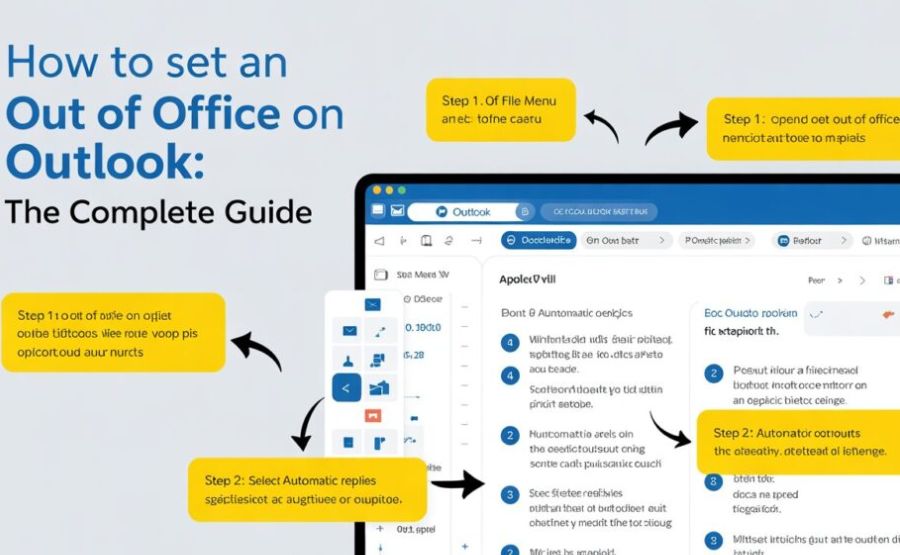
Step 1: Open Outlook on your computer.
Step 2: Look for the gear icon in the top-right corner of the screen. That is your Settings button. Click it.
Step 3: A settings panel will slide open. Look on the left side for Accounts. Click that.
Step 4: Under Accounts, click Automatic Replies.
Step 5: You will see a toggle switch that says “Turn on automatic replies.” Flip it on.
Step 6: A checkbox will appear asking if you want to send replies only during a specific time window. Check that box. Then set your start date and end date.
This step is important. If you skip it, your Out of Office message keeps firing even after you return to work. Setting an end date means it shuts itself off automatically. No chance of forgetting.
Step 7: Write your message in the text box. Keep it short and friendly.
Step 8: Below your message, you will see an option to send a different reply to people outside your company. Toggle that on if you want it.For external contacts, write a different message.
Step 9: Click Save in the top-left corner of the settings panel.
Done. Outlook will now reply to every incoming email during your chosen dates.
Setting Out of Office in Classic Outlook for Windows (Older Version)
Some workplaces still run the traditional version of Outlook. The steps are slightly different but just as quick.
Step 1: Open Outlook. At the very top left of the screen, click the File tab.
Step 2: You are now in the Info section. Look for the button labeled Automatic Replies (Out of Office). Click it.
Step 3: A dialog box pops up. Select Send automatic replies.
Step 4: Check the box that says Only send during this time range. Set your start time and end time.
Step 5: In the tab labeled Inside My Organization, type the message your coworkers will receive.
Step 6: Click the Outside My Organization tab. Type a message for clients, partners, or anyone emailing from a different company.
Step 7: Click OK. That saves everything and turns on your replies.
When you get back from wherever you went, a yellow banner will appear at the top of Outlook reminding you that your automatic replies are still active. Click Turn Off right there to disable it.
Setting Out of Office in Outlook on the Web
You do not need to install anything. Just open a browser, go to outlook.office.com or outlook.live.com, and sign in.
Step 1: Once you are in, look at the top-right corner. Click the gear icon.
Step 2: A settings panel opens. Look for Accounts in the left-hand menu, then click Automatic Replies. On some versions, you may need to click “View all Outlook settings” first, then go to Mail → Automatic Replies.
Step 3: Toggle Turn on automatic replies to the on position.
Step 4: Check the box for Send replies only during a time period. Choose your start and end date and time.
Step 5: Type your message in the text box below.
Step 6: If you want to also reply to people outside your organization, look for the option to send external replies. Turn it on and write a second message.
Step 7: Click Save.
Outlook on the web has one extra perk that the desktop versions do not. It gives you the option to automatically block your calendar and decline meeting invitations while you are away. If you do not want to come back to a calendar full of meetings that were booked while you were gone, turn that on too.
Setting Out of Office on Outlook for Mac
If you are on a Mac and using the New Outlook for Mac — which is almost certainly the case now since the older version is being retired in October 2026 — the steps look just like the web version.
Step 1: Click the gear icon in the top-right corner.
Step 2: Select Accounts → Automatic Replies.
Step 3: Toggle on Send automatic replies.
Step 4: Set your time period.
Step 5: Write your message for people inside your organization.
Step 6: Enable external replies and write a second message if needed.
Step 7: Close the settings panel. Changes are saved automatically.
If you still somehow have the old classic Outlook for Mac, the path is different. Go to Tools in the top menu bar, then click Automatic Replies. The options from there look similar to what was described above.
But again — that old version stops working with Exchange Online in October 2026. If your Mac version looks very old, it is worth checking for an update.
Setting Out of Office on the Outlook Mobile App (iPhone or Android)
Your phone works too. You do not have to be at your desk.
Step 1: Open the Outlook app on your phone.
Step 2: Tap your profile picture or initials in the top-left corner of the screen.
Step 3: A menu slides in from the left. At the bottom, tap the Settings gear icon.
Step 4: Scroll down to find your email account listed under accounts. Tap it.
Step 5: Tap Automatic Replies.
Step 6: Toggle automatic replies to On.
Step 7: Type your message.
Step 8: Set a time range if the option appears.
Step 9: Tap the checkmark or Save to confirm.
That is it. Done from your phone in under two minutes.
What If Automatic Replies Do Not Appear? (The Gmail and IMAP Fix)
You clicked File. You looked. No Automatic Replies button anywhere.
This happens when your email account is connected through POP or IMAP — the protocols that Gmail, Yahoo, and many personal email accounts use. The built-in Out of Office feature simply does not exist for those account types.
But there is a workaround. You set up a Rule instead.
Here is how to do it in Classic Outlook for Windows:
Step 1: First, create your reply message. Open a new email. Write the text you want people to receive. Do NOT send it. Instead, click File → Save As. Change the file type to Outlook Template (.oft). Save it somewhere you can find it.
Step 2: Now go to File → Manage Rules & Alerts.
Step 3: Click New Rule.
Step 4: Choose Apply rule on messages I receive. Click Next.
Step 5: If you want this to apply to all incoming emails, leave all conditions unchecked and click Next. A warning will pop up. Click Yes to confirm.
Step 6: Check the box that says Reply using a specific template. Then click the link that says “a specific template” in the description box below.
Step 7: In the dropdown that says “Look In,” choose User Templates in the File System. Find the template you saved in Step 1. Click it. Click Open.
Step 8: Click Next. Add any exceptions if needed. Click Next again.
Step 9: Give your rule a name. Click Finish.
One huge catch: For this method to work, Outlook must stay open and running on your computer the entire time you are away. If your computer shuts down, the rule stops working. This is why the built-in Automatic Replies (which runs on Microsoft’s servers) is far more reliable.
If you use Gmail regularly, the smartest thing to do is just set your Out of Office directly in Gmail’s own settings. Gmail does this natively, no workarounds needed.
Setting an Out of Office on Your Calendar Too
Your email message is sorted. But what about your calendar?
When colleagues try to book meetings with you while you are gone, they might not see your out of office status — unless you also mark your calendar.
Here is how to do it quickly:
Step 1: Open your Outlook calendar.
Step 2: Click on the days you will be away to create a new event.
Step 3: Set it as an All-Day Event.
Step 4: Look for the Show As dropdown. Change it to Out of Office.
Step 5: Give the event a clear title — something like “Out of Office – Back June 20.”
Step 6: Save it.
Now when someone tries to schedule a meeting, Outlook will flag you as unavailable. It prevents meeting conflicts without you having to do anything else.
How to Turn Off Your Out of Office When You Get Back
If you set an end date, Outlook turns itself off automatically. Nothing to do.
But if you skipped the end date — or if you come back earlier than expected — here is how to turn it off manually.
New Outlook / Web version: Go to the gear icon → Accounts → Automatic Replies. Toggle the switch off. Click Save.
Classic Outlook: You will see a yellow banner at the top of your inbox when automatic replies are active. Click Turn Off right there. Or go back to File → Automatic Replies → select “Do not send automatic replies.”
Mobile app: Tap your profile icon → Settings → your account → Automatic Replies → toggle off.
One common mistake: people assume the end date is a perfect guarantee. Always double-check when you return. It takes ten seconds to verify the toggle is off.
Writing an Out of Office Message That Actually Works
The words you choose matter more than people realize.
A bad Out of Office message leaves the sender more confused than when they started. A good one handles everything in three sentences.
Here is what every good Out of Office message includes:
- Your return date. People want to know when you are coming back. Be specific. “I return on June 18th” is better than “I’m back soon.”
- Who to contact in an emergency. Give a name, a job title, and an email address. Not just “contact my team.”
- A simple sentence about response time. Let them know when they can expect to hear from you. “I’ll reply within one business day of my return” sets a clear expectation.
Here is a simple example that works:
“Thanks for your email. I am out of the office from June 14 to June 18 with limited access to email. For anything urgent, please contact Sarah Mitchell at smitchell@company.com. I will reply to all other messages when I return on June 19th.”
That is all you need. Short. Clear. Respectful of everyone’s time.
A few things to leave out: your personal travel plans, any information about where you are going, and anything that would let a stranger know your home will be empty.
Smart Tips That Most Guides Skip
Tip 1: Test it before you leave. Have a coworker send you a test email. Make sure the reply goes out correctly. Do not assume it is working without checking.
Tip 2: Different messages for inside and outside. Your internal message to colleagues can be more casual. Your external message to clients should be more professional. Outlook lets you write both. Use that feature.
Tip 3: Outlook only sends one auto-reply per sender. If the same person emails you three times, they only get one automatic reply. This is by design. Outlook does this to avoid flooding inboxes.
Tip 4: Do not forget your shared mailboxes. If you manage a team inbox or a shared account, you may want to set Out of Office for that mailbox too. You need the right permissions to do this. If you manage it yourself, go into that mailbox and follow the same steps.
Tip 5: Set a calendar reminder to turn it off. If you did not set an end date, put a calendar reminder on your first day back that says “Turn off Out of Office.” Five seconds of work that saves you from looking absent when you are sitting right at your desk.
Common Problems and How to Fix Them
Problem: The Automatic Replies option is missing entirely. This almost always means your account type is Gmail, Yahoo, or another POP/IMAP account. The built-in feature does not support those. Use the Rules workaround described above, or set an out of office directly in your email provider’s own settings.
Problem: You set it up but replies are not going out. Check that Outlook is actually connected to the internet. Also check that the dates you set include today — sometimes people set the wrong month by accident. Try restarting Outlook.
Problem: External people are not getting your reply. You need to actively turn on the external reply option. It is not on by default. Go back into Automatic Replies settings and make sure “Send replies outside my organization” is checked.
Problem: Auto replies stopped working mid-vacation. If you used the Rules method for a POP/IMAP account, your computer may have gone to sleep or shut down. That breaks the rule. The only real fix is to set your Out of Office on the email provider’s website directly.
Problem: Your automatic reply is still firing even after you returned. You did not set an end date, or the end date passed but the feature did not turn off correctly. Go back into settings and toggle it off manually.
Final Words
Setting an Out of Office in Outlook is genuinely one of the quickest things you can do before you leave. Two minutes. That is all it takes.
The hardest part for most people is finding the right menu for their version of Outlook. The classic desktop app, the new desktop app, the web version, the mobile app, and the Mac version all hide the setting in slightly different places. Now you know exactly where to look for each one.
Write a clear message. Set an end date. Check it once before you leave.
Then actually enjoy your time away — without guilt-checking your phone every hour.
FAQs
1. Where do I find the Out of Office setting in Outlook?
It depends on your version. In Classic Outlook for Windows, go to File → Automatic Replies. In New Outlook for Windows or the web version, click the gear icon → Accounts → Automatic Replies. On Mac, go to the gear icon in New Outlook, or Tools → Automatic Replies in the old version. On mobile, tap your profile icon → Settings → your account → Automatic Replies.
2. Why can’t I find the Automatic Replies button?
The most common reason is that your email account uses Gmail, Yahoo, or another POP/IMAP connection. These account types do not support the built-in Automatic Replies feature. You either need to set out of office directly in your email provider’s settings, or use Outlook’s Rules feature as a workaround.
3. Can I set a specific start and end date for my Out of Office?
Yes. In every version of Outlook, you can set an exact date and time for when automatic replies begin and when they stop. This is strongly recommended. It means you do not have to remember to turn it off manually when you get back.
4. Do I need to write two different messages?
You do not have to, but it is a good idea. Outlook lets you write one message for people inside your company and a separate message for people outside your organization. Your coworkers might be fine with a casual “Hey, I’m on vacation!” Your clients probably deserve something more professional.
5. Will Outlook keep replying to the same person every time they email me?
No. Outlook only sends one automatic reply per sender per out-of-office period. If the same person emails you ten times while you are away, they will only receive your auto-reply once.
6. What happens if I forget to turn it off when I come back?
Everyone who emails you will keep receiving your Out of Office message even though you are at your desk and reading emails normally. This looks confusing and unprofessional. Always check when you return — or set an end date when you set it up.
7. Can I set Out of Office on my phone?
Yes. The Outlook mobile app on both iPhone and Android lets you enable automatic replies through your account settings. The path is: profile icon → Settings → your account → Automatic Replies.
8. What if I use Gmail through Outlook — can I still set an Out of Office?
Not through the built-in Automatic Replies feature. For Gmail accounts, either set your Out of Office directly in Gmail (Settings → Vacation Responder) or use Outlook Rules as a workaround. The Rules method requires leaving your computer on and Outlook open the whole time you are away.
9. How do I turn off Out of Office when I return?
In New Outlook or the web version, go back to gear icon → Accounts → Automatic Replies and toggle it off. In Classic Outlook, look for the yellow banner at the top of your inbox and click Turn Off. On mobile, go back to the same Automatic Replies setting and toggle it off.
10. Can I also block my calendar so people cannot book meetings while I am away?
Yes. Create an all-day event in your Outlook calendar covering the days you will be gone. Set the “Show As” status to “Out of Office.” Colleagues will see you as unavailable when they try to schedule meetings. Outlook on the web also has a built-in option to automatically decline new meeting invitations during your out of office period.
11. Does Outlook Out of Office work if my computer is turned off?
For Exchange and Microsoft 365 accounts, yes — the automatic replies run on Microsoft’s servers, not your computer. Your computer does not need to be on. For the Rules workaround used with POP/IMAP accounts, your computer does need to be on and Outlook needs to be running.
12. Can I set different Out of Office replies for different people?
Somewhat. Outlook gives you two built-in options: one message for internal contacts (inside your organization) and one for external contacts. You can also set it to only reply to people in your contacts list. For more complex rules — like a completely different reply for a specific person — you would need to set up custom Rules.
13. Will my Out of Office reply go to spam emails or mailing lists?
Outlook generally does not send automatic replies to emails flagged as junk or to no-reply addresses and mailing lists. This is intentional behavior to avoid reply loops and spam.
14. Can I set Out of Office for a shared mailbox?
Yes, but you need the right permissions for that mailbox. If you have access, open the shared mailbox in Outlook and follow the same steps. On the web version, click your profile icon, select “Open another mailbox,” enter the shared mailbox address, and then configure automatic replies from there.
15. What should I include in my Out of Office message?
Three things matter most: when you will be back (be specific with a date), who someone should contact if the matter is urgent (name, role, and email address), and a note about when you will respond to regular emails. Keep it short. Do not share travel details or mention that you will be away from home. Keep it professional and brief.
Explore more, learn more, and think deeper with Theory Magazine.