Picture this. You just got a new iPhone, and there’s no little SIM card waiting for you in the box. No tiny tray. No paperclip tool to pop it open. Just a screen, a few taps, and suddenly your phone is talking to a cell tower like it’s done this a hundred times before.
That little piece of magic is called an eSIM. And once you understand it, you’ll wonder why phones ever needed plastic cards in the first place.
This guide walks you through everything — what an eSIM actually is, how to set one up no matter which iPhone you own, how to use it for travel, and what to do when something doesn’t work right away. No tech jargon. No confusing detours. Just plain talk, like a friend showing you on their own phone.
Quick Facts
| What You Want to Know | The Answer |
| First iPhones with eSIM | iPhone XS, XS Max, and XR (released in 2018) |
| US iPhones that dropped the SIM tray completely | iPhone 14 and every model after it |
| Most eSIM profiles an iPhone can store | 8 or more, depending on the model |
| Most eSIMs that can be active at the same time | 2, on iPhone 13 and newer |
| How long setup usually takes | Under 5 minutes on Wi-Fi |
| What you need on hand | A Wi-Fi or cellular connection, an unlocked iPhone, and a QR code or activation code from your carrier |
| Does it cost anything to set up? | No, the setup itself is free — you only pay for the plan |
| Good for travel? | Very. You can keep your home number and add a local one for the trip |
What exactly is an eSIM?
An eSIM is a SIM card with no card. Strange thought, isn’t it? Apple builds a tiny chip directly into your iPhone, and your carrier sends your entire phone plan to that chip over the internet.
You never touch it. You never see it. It just sits quietly inside your phone, waiting for your carrier to flip the switch.
Think of it a bit like downloading an app. Except instead of giving you a game or a calculator, this one gives you a phone number, texts, and mobile data.
The letter “e” stands for “embedded.” That’s really the whole secret. It’s embedded right into the hardware instead of slotted in from the outside.
See also “Whoer IP: The Tool That Shows What the Internet Already Knows About You“
Why People Are Falling in Love With eSIM
Nobody loses an eSIM in their couch cushions. You can’t drop it down a drain or watch a toddler swallow it. It simply can’t go missing, because it was never a separate object to begin with.
It also travels well. Land in a new country, scan a code before you even step off the plane, and you’re connected without hunting for a phone shop with a sign you can’t read.
There’s a security perk too. If your iPhone gets stolen, nobody can pop out your SIM and use it somewhere else. The eSIM stays locked to your device.
And if you’ve ever needed two numbers — one for work, one for your personal life — an eSIM lets you run both on a single phone. No second device required, no juggling two phones in your bag.
Step One: Make Sure Your iPhone Can Actually Do This
Not every iPhone has this feature, so let’s check first before you get excited for nothing.
If your iPhone is an XR, XS, or XS Max, you’re covered. So is every single model that came after — the 11, 12, 13, 14, 15, 16, and 17 series, plus both newer SE models from 2020 and 2022.
Anything older than that, including the iPhone X, the iPhone 8, or the original 2016 SE, won’t support eSIM at all. The chip simply isn’t built in.
There’s one easy way to be sure. Open Settings, tap Cellular (it might say Mobile Service depending on where you live), and look for an option called Add eSIM. If you see it, your phone is ready.
While you’re there, check one more thing. Go to Settings, then General, then About, and look for Carrier Lock. If it says “No SIM restrictions,” your iPhone is unlocked and free to accept an eSIM from any carrier you choose.
One small note for anyone outside the usual markets — iPhones sold in mainland China mostly skip eSIM entirely and stick with two physical SIM slots instead. The iPhone Air is the one exception there.
Step Two: Get a Few Things Ready First
Before you tap a single button, gather your tools. It saves you from stopping halfway through, annoyed, with one sock on.
You’ll want a stable Wi-Fi connection, since downloading an eSIM profile takes real data and a flaky connection can stall the whole thing. A charged battery matters too — nobody wants their phone dying mid-setup.
Make sure you’re signed into your Apple Account, since some transfer methods check for this. And have whatever your carrier sent you ready to go, whether that’s a QR code on a screen, a code in your email, or a phone call away through their app.
Lastly, check that your iPhone is running a recent version of iOS. Old software sometimes causes eSIM hiccups that have nothing to do with you doing anything wrong.
Setting Up eSIM on a Brand New iPhone
If this is a fresh-out-of-the-box iPhone, the setup screen practically holds your hand through it. As you go through the welcome screens, you’ll eventually land on a step about cellular plans.
You’ll be offered a few choices here. One option transfers your existing number straight from your old iPhone, if it’s sitting nearby with Bluetooth turned on. Another lets you scan a QR code your carrier gave you. A third lets you type in the details by hand if a code isn’t available.
Pick whichever fits your situation, follow what’s on screen, and your phone takes care of the rest. Within a couple of minutes, you’ll see signal bars appear like nothing ever happened.
Adding an eSIM by Scanning a QR Code
Already using your iPhone and just need to add a new plan? This is the most common path, and honestly the easiest one.
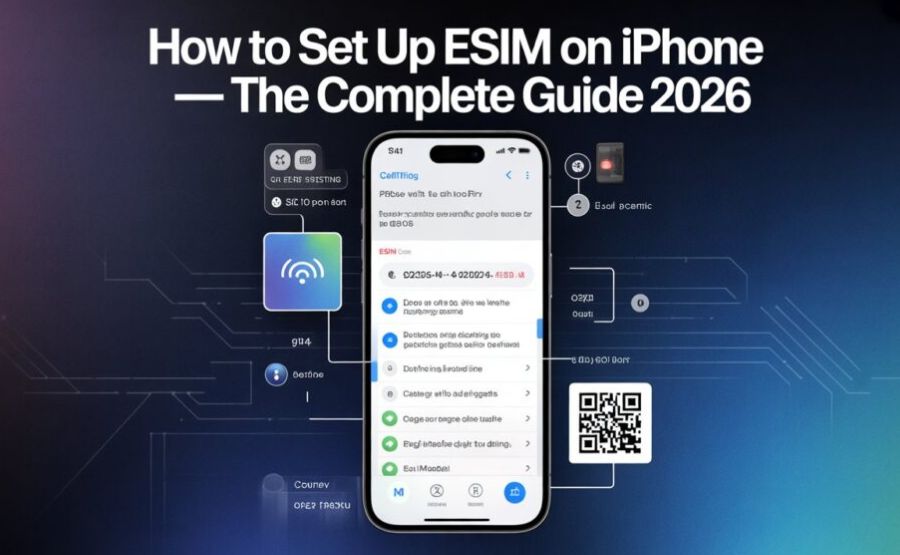
Open Settings, then tap Cellular. Tap Add eSIM, then choose Use QR Code.
Your camera opens up. Point it at the QR code your carrier gave you, whether that’s printed on paper, sitting in an email, or shown on a website.
Your phone recognizes it instantly and starts downloading your plan. Give it a minute, and a new line shows up under your cellular settings, ready to switch on.
One thing worth knowing — each QR code usually works only once. If you already scanned it successfully, scanning it again won’t do anything new, so don’t panic and assume something broke.
No QR Code? Type It In By Hand Instead
Sometimes a carrier sends you a code instead of a picture to scan. That’s completely fine, and the process barely changes.
Go to Settings, tap Cellular, tap Add eSIM, and choose Use QR Code anyway. At the bottom of that screen, you’ll spot a smaller option that says Enter Details Manually.
Tap it, then type in the two pieces of information your carrier gave you — usually called the SM-DP+ address and the activation code. These look like a jumble of letters and numbers, so copy carefully or paste them if you can.
Tap Next, then Continue. Give it a moment to connect to the network, and your new eSIM line appears just like it would with a scan.
Moving Your Number From an Old iPhone to a New One
This is the part that feels like real magic the first time you watch it happen. Apple calls it eSIM Quick Transfer, and it skips the whole “call your carrier” headache completely.
A few things need to line up first. Both iPhones need to run iOS 16 or newer, both need Bluetooth turned on, and both need to be signed into the same Apple Account. Your old iPhone also needs its passcode entered and unlocked nearby.
On your new iPhone, head to Settings, then Cellular, then tap Add eSIM. Look for an option that says Transfer From Nearby iPhone, then follow whatever prompt appears.
Your old iPhone will ask you to confirm the transfer. Tap yes, and within seconds your number jumps over to the new device.
Here’s the catch worth remembering — once that transfer finishes, the number stops working on your old iPhone entirely. So don’t do this until you’re truly ready to hand over the old device or set it aside.
Turning a Physical SIM Card Into an eSIM
Maybe you’ve had a plastic SIM this whole time and you’re finally ready to drop it. Plenty of carriers let you convert that exact same plan into an eSIM without losing your number.
Open Settings, tap Cellular, then tap Set Up Cellular or Add eSIM, whichever one shows up on your screen. Choose the line tied to your physical SIM.
You should see an option called Convert to eSIM. Tap it and follow the steps that pop up.
Once it’s done, you can pull the physical card out of the tray for good. Some people keep it as a backup in a drawer, just in case, and there’s nothing wrong with that instinct.
Setting Up an eSIM for a Trip Abroad
Travel is honestly where eSIM shines the brightest. Gone are the days of hunting for a phone shop at the airport with a long line and a language barrier.
The smart move is installing your travel eSIM before you even leave home, while you’re still on solid home Wi-Fi. Go to Settings, tap Cellular, tap Add eSIM, and scan the QR code your travel provider emailed you.
Don’t switch it on yet, though. Most travel eSIMs only activate once they detect you’re actually in the destination country, so seeing “No Service” while you’re still packing your suitcase is completely normal, not a sign something’s broken.
Once you land, open Settings and turn on Data Roaming for that travel line specifically. This step trips up more people than anything else, because without it, your new eSIM just sits there looking useless even though it’s perfectly installed.
Keep your home SIM or eSIM turned on too, just for calls and texts, so people back home can still reach you the usual way. Your travel eSIM only needs to handle the data side of things.
Running Two Numbers at the Same Time
Here’s where things get a little more personal, depending on which iPhone you own. The rules genuinely differ by model, so don’t feel behind if your friend’s phone behaves differently than yours.
If you have an iPhone 13 or anything newer, you can keep two eSIMs fully active at once, with no physical SIM required at all. Older models, from the XS through the 12 series, only allow one eSIM active alongside a physical SIM, even though they can store many more profiles in storage.
Storage and activity aren’t the same thing, and that trips people up constantly. Your iPhone might happily store eight saved eSIM profiles while only running one or two of them live at any given moment.
To switch which lines are doing what, open Settings and tap Cellular. You’ll find a Default Voice Line setting, which decides which number rings when someone calls you. There’s also a separate Cellular Data setting, which decides which line handles your internet browsing and app data.
If you want your phone to stop automatically hopping between lines based on signal strength, look for “Allow Cellular Data Switching” and switch it off. Some people prefer the automatic behavior, others find it confusing, so pick whichever matches how your brain works.
Renaming Your Lines and Choosing What’s Default
Two unlabeled lines named “Carrier” and “Carrier 2” get confusing fast. Luckily, fixing that takes seconds.
Tap into any cellular line inside Settings, and you’ll find a label option near the top. Rename it to something obvious, like “Home” or “Work Trip” or “Japan eSIM,” whatever helps your future self instantly know what it’s for.
You can also choose which line handles iMessage and FaceTime specifically, separate from regular calls. Head into Settings, tap Messages or FaceTime, and pick the number you’d rather have tied to those apps.
How to Turn Off or Delete an eSIM
Sometimes you don’t want to delete a line forever — you just want it quiet for a while. Open Settings, tap Cellular, tap the eSIM line in question, and switch off “Turn On This Line.” The profile stays saved on your phone, just sleeping until you need it again.
If you genuinely want it gone, go back to that same Cellular screen. If you only have one plan, tap Delete eSIM. If you’ve got several, tap the specific one you want gone, then tap Delete Plan.
Keep in mind, deleting the eSIM from your phone doesn’t cancel your actual contract or subscription with the carrier. You’d still need to contact them separately if you want to stop paying for the plan itself.
Also worth knowing — many travel eSIMs can’t simply be reinstalled once deleted. If your travel eSIM seems stuck or slow, try every other fix first before reaching for the delete button as a last resort.
When Things Go Wrong: Easy Fixes That Actually Work
Almost every eSIM hiccup comes down to something small, not a broken phone. Work through these in order, and you’ll likely be back online before you finish your coffee.
Start by simply restarting your iPhone. It sounds too easy to actually help, but a fresh restart clears out small software glitches more often than people expect.
Next, flip Airplane Mode on, wait about fifteen seconds, then flip it back off. This forces your phone to reconnect to the network from scratch, which fixes a surprising number of “stuck” situations.
Check that Data Roaming is switched on for whichever eSIM you’re trying to use, especially while traveling. This single setting causes more “my eSIM isn’t working” messages than anything else on this entire list.
Double check that your iPhone is actually using the right line for data. Go to Settings, tap Cellular, then Cellular Data, and confirm the correct eSIM is selected there, not just turned on.
If a physical SIM is also installed, try removing it temporarily. Occasionally the two clash with each other, and giving the eSIM some breathing room solves the issue instantly.
Update your iOS software if you haven’t lately. Apple regularly patches small eSIM bugs through these updates, and skipping them can leave you stuck on an old glitch that’s already been fixed for everyone else.
If absolutely nothing works, resetting your network settings can help, though it does wipe your saved Wi-Fi passwords in the process. Your eSIM profiles themselves stay intact through this reset, so don’t worry about losing the plan itself.
And if you’ve tried everything here and you’re still stuck, it’s genuinely time to call your carrier. Some problems are tied to their servers, not your phone, and no amount of restarting will fix that from your end.
Final Words
Setting up an eSIM feels intimidating for about thirty seconds, right up until you actually do it once. After that, it becomes as routine as connecting to a new Wi-Fi network.
No more digging through a junk drawer for a SIM ejector tool. No more waiting by the mailbox for a tiny envelope to arrive. Just a scan, a tap, and you’re connected.
Whether you’re setting up a brand new iPhone, switching carriers, or getting ready for a trip abroad, the steps stay mostly the same every time. Once you’ve done it once, you’ve basically done it forever.
FAQs
1. Do I need Wi-Fi to set up an eSIM?
You need some kind of internet connection, whether that’s Wi-Fi or existing cellular data. Wi-Fi tends to be more reliable, especially in a new country where your old plan might not have coverage yet.
2. Can I use an eSIM and a physical SIM at the same time?
Yes, on most eSIM-compatible iPhones. You can run one physical SIM and one eSIM together, giving you two working numbers on a single device.
3. How many eSIMs can my iPhone actually store?
Most newer models can store eight or more eSIM profiles at once, even though only one or two can be active and working at any given time.
4. How many eSIMs can be active together?
On the iPhone 13 and every model after it, two eSIMs can run live at the same time. Older eSIM-compatible models allow only one active eSIM, paired with a physical SIM if needed.
5. Will adding an eSIM erase my photos, apps, or contacts?
No. Setting up an eSIM only touches your cellular settings. Everything else on your phone stays exactly where it was.
6. Can I move my eSIM to a different iPhone later?
Often yes, especially between two iPhones using eSIM Quick Transfer. Moving to an Android phone usually means contacting your carrier for a fresh eSIM instead.
7. Does setting up an eSIM cost extra money?
The setup itself is free. Any cost comes from the actual phone plan you’re activating, not from the act of installing it.
8. Can I scan the same QR code twice?
Generally no. Most eSIM QR codes are designed to work only once, so a second scan usually won’t reinstall anything new.
9. What if my carrier didn’t give me a QR code?
Ask them for the SM-DP+ address and activation code instead. You can type both into your iPhone manually under Enter Details Manually.
10. Does an eSIM work exactly like a regular SIM for calls and texts?
Yes, completely. The only real difference is how it gets installed, not how it performs once it’s running.
11. Can I delete an eSIM and then reinstall it later?
Sometimes, but not always. Carrier eSIMs often allow reinstallation, while many travel eSIMs cannot be reinstalled once removed, so always double-check before deleting one.
12. Is an eSIM actually safer than a physical SIM card?
In a meaningful way, yes. Since it’s built into the device, nobody can physically remove it if your phone gets lost or stolen, unlike a plastic SIM that can simply be popped out.
13. Why does my eSIM say “Activating” and never connect?
This usually means you’re not yet in the coverage area the eSIM was made for, especially with travel eSIMs. Wait until you land at your destination, then try toggling Airplane Mode on and off.
14. Can I use a travel eSIM without losing access to my home number?
Yes. Keep your home line on for calls and texts, and simply set the travel eSIM as your data line. Both run side by side without interfering with each other.
15. Does every carrier support eSIM?
Not every single one, though support keeps growing every year. Most major carriers worldwide now offer it, but it’s always worth checking with smaller or regional carriers before assuming.
Explore more, learn more, and think deeper with Theory Magazine.